
"Google Images won't show the full page" describes at least four different problems, and they have different fixes. Before changing anything, identify which one you are seeing: images that never load, a grid whose thumbnails will not enlarge, a missing full-screen or "View image" view, or a results page that looks incomplete. The first step is always the same — decide which symptom you actually have, then work through the matching list.
Name the symptom first
| What you see | Most likely area | First thing to try |
|---|---|---|
| Thumbnails appear as empty boxes or broken-image icons | Loading / network / blocking | Reload on another network; check extensions and filters |
| Grid shows, but clicking a thumbnail will not open the larger preview | Preview panel / script blocked | Disable content-blocking extensions; reload |
| No full-screen or "View image" option after opening a result | Interface change or blocked source | Confirm the image still exists on its source page |
| Only a few images, or results look filtered | Filters, SafeSearch, region or view mode | Reset filters; check the layout toggle and Google app version |
Two people describing "the full page is missing" may be looking at opposite problems, so jump to the row that matches your screen and ignore the rest.
Thumbnails that never load
If images are blank while the page itself works, the problem is usually delivery rather than Google. Try these in order:
- Reload and retry. A single failed load is common on image-heavy pages; refresh once before assuming a fault.
- Change network. Switch between Wi-Fi and mobile data, or try another connection. Corporate networks and some DNS or firewall setups block image hosts.
- Check extensions. Ad blockers, tracker blockers and privacy tools can block the scripts Google Images uses to render thumbnails. Disable them for the site and reload.
- Check filters and SafeSearch. A restrictive SafeSearch setting or an active size/colour/type filter can hide most results and look like a broken page.
- Try another browser or a private window. This separates a browser-profile problem from an account or network one.
If images load in one browser but not another, the cause is local to that browser profile — extensions, cached data or settings — not the website or Google.
Grid shows but clicking does not enlarge
When thumbnails are visible but the click does nothing, the interactive preview layer is failing to run. Common causes are content-blocking extensions, a script error after a browser update, or stale cached files. Work through this order:
- Reload the page once; a partial script load can leave the grid unresponsive.
- Disable extensions that inject or block scripts, then reload and test a single thumbnail.
- Clear cached images and files for the recent period (not all history, so you keep your logins), then reload.
- Update the browser, then try a private window.
If the preview works in a private window with extensions off, the conflict is with an extension or a cached file, and re-enabling items one at a time will identify which one.
Missing full-screen or "View image"
Google has changed this part of the interface several times, and it also behaves differently depending on whether the source site still hosts the image. What looks like a missing button is often one of these:
- Interface variation. The enlarged view and the way you reach the source image differ between desktop and mobile, and between the Google app and a mobile browser. Look for the preview panel first, then for a link to the source page.
- The source removed or blocked the image. If the original file returns an error, or the site blocks hotlinking, Google may show a cached thumbnail but no working full view. Open the source page to confirm the image still exists there.
- Region or rollout differences. Feature rollouts are not simultaneous everywhere, so two people can see different controls on the same search.
"Full screen" is gone: tap shows options, not the full image
This is the symptom people describe as "I can't view Google images in full screen any more". On a phone, tapping an image in Google Images often brings up a few actions (save, share, visit) instead of a full-size preview, and there is no obvious button to enlarge it. That is almost always an interface change, not a fault on your side or on the site that hosts the image.
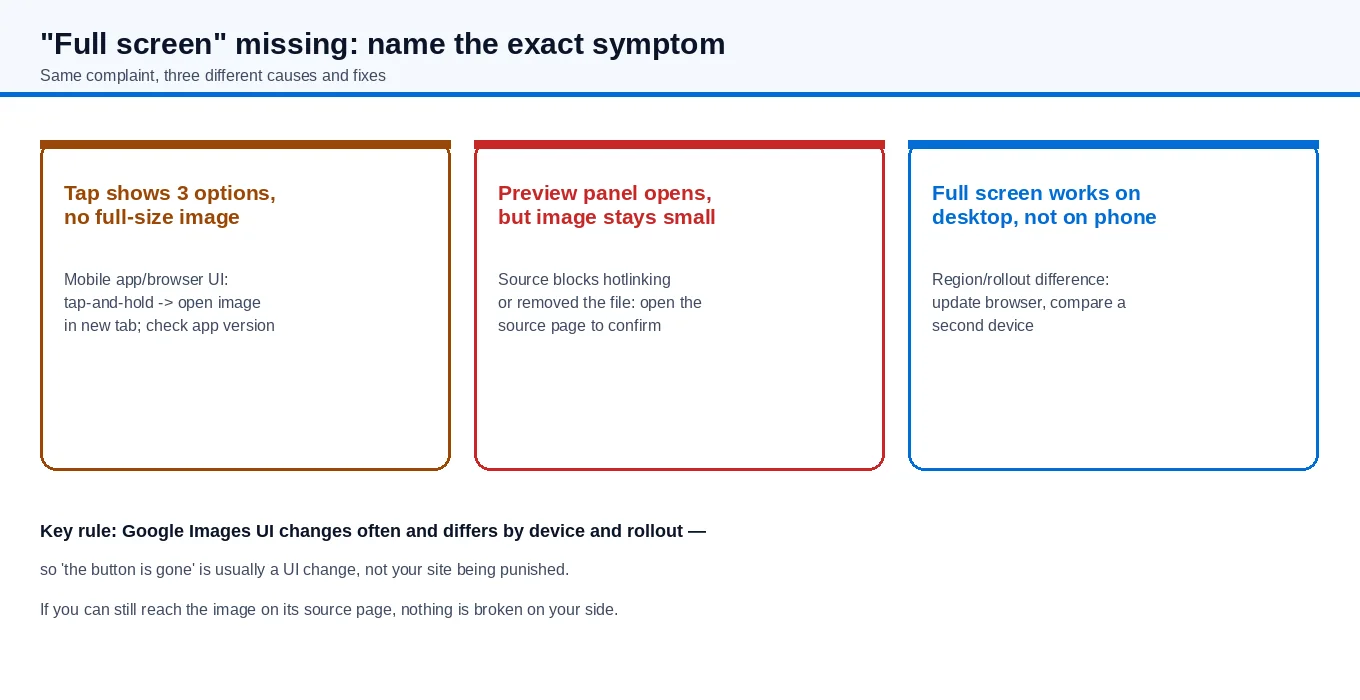
Work through it by cause:
- You want the image at full size and only get options. Press and hold the image and choose to open the image, or open the source page and view the file there. On mobile this is the usual route when the enlarged preview is not offered.
- The preview opens but the image stays small. The source site may block hotlinking or has moved or removed the file, so Google shows a cached thumbnail. Open the source page to confirm the image still exists there.
- Desktop shows a full view but your phone does not. Feature rollouts and interface layouts differ by device, app version, region and account. Update the Google app or browser, then compare a second device before assuming a fault.
- You are the site owner and want the full image to be reachable. This is a hosting choice, not a Google setting. Blocking hotlinking, requiring a referer, or serving images through scripts can stop the full-size file from loading outside your pages. Google documents how images are surfaced in its Google Images documentation.
The practical test is always the same: if the image still opens on its own source page, nothing is broken — you are looking at a change in how Google Images presents results on that device. If the source page itself no longer serves the image, that is the site's problem to fix, not yours.
Results that look incomplete
If you are getting far fewer images than expected, the cause is usually a setting rather than a fault:
- View mode. Google Images switches between a dense grid and a single-column layout. In the single-column list view you see many fewer images per screen, which can look like missing results. Switch back to the grid.
- Filters. Size, colour, type, time and usage-rights filters all reduce the set. Open the filters and reset them.
- Query phrasing. A very specific phrase returns fewer images than a broader one. Try a simpler query.
- Region, language and personalisation. Results depend on your country, language and search history, so your results will not match someone else's exactly.
On phones and tablets
Mobile behaves differently from desktop, so use mobile-specific checks:
- Update the Google app or your mobile browser; older builds can render the results page incorrectly after a Google change.
- If the Google app misbehaves, open Google Images in the mobile browser instead (or the reverse) to see whether the fault follows the app or the device.
- Clear the app cache and, if needed, the browser's cached files, then reopen the search.
- Check your device's content blockers and data-saving modes — some compress or block images and can leave blank tiles.
- Confirm you are not in a restricted profile or a managed device that limits image loading.
When the problem is actually your own site
If you are the site owner and your images do not appear in Google Images at all, the issue is different from a viewer's display problem. Check whether the image pages are indexable (robots and noindex settings), whether the images load for a logged-out crawler, whether the site blocks hotlinking or requires a referer, and whether images are served through scripts or lazy-loading that a crawler may not execute. Google documents image SEO basics in its Google Images documentation. A page can rank in web search while its images stay out of image search; the two are indexed separately.
Quick checklist
- Identify the symptom: no load, no enlarge, no full view, or too few results.
- Reload; then switch network.
- Disable extensions or content blockers for the page.
- Clear recent cached files; update the browser or app.
- Reset filters and SafeSearch; confirm you are in grid view.
- Try a private window or a different browser to isolate a profile issue.
- Site owner? Check indexing, hotlinking and how images are loaded, separately from the viewer's display problem.
Most of these are viewer-side and cost nothing to fix. If your images are published but never appear in image search, the work moves to your site's technical setup and indexed pages — that is part of the technical side of Google SEO support from Guangsuan. If you just want to know whether a specific page is indexed, you can ask the team to check it with you.